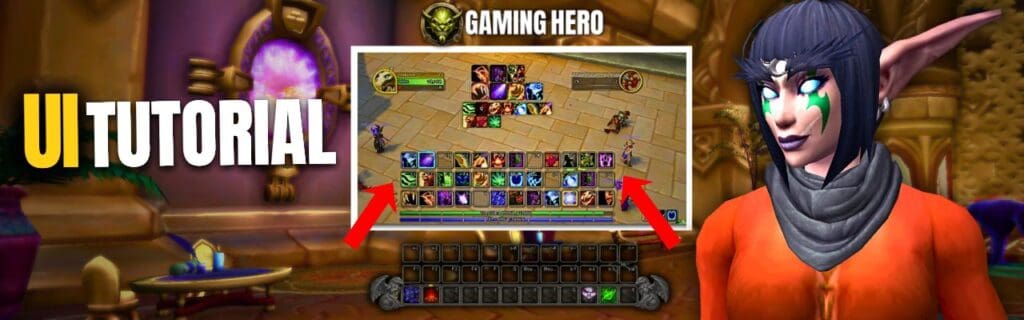
What’s up, Gaming Heroes. If you’ve just created a new character in World of Warcraft, paid your subscription, logged in full of excitement, and then been greeted by Blizzard’s default UI… yeah. You’re not alone. The stock UI works, but it’s cluttered, awkwardly spaced, and definitely not designed to help you play better.
In this guide, I’ll show you how to set up a clean, modern World of Warcraft UI using the built-in Edit Mode, no addons required. This setup works for new players, returning players, and veterans who want a simple, efficient layout that looks good and performs well in combat.
We’ll cover action bars, frames, cooldown tracking, combat visibility, and quality-of-life tweaks that make the game feel instantly better to play.
Video Guide: Full WoW UI Setup Walkthrough
Below is the full video walkthrough where I build this UI step by step and explain every decision along the way. If you want to build it for yourself just follow along with the video!
If you’d rather watch and follow along in real time, I recommend starting with the video and then using this article as a reference.
Creating a New UI Layout in WoW Edit Mode
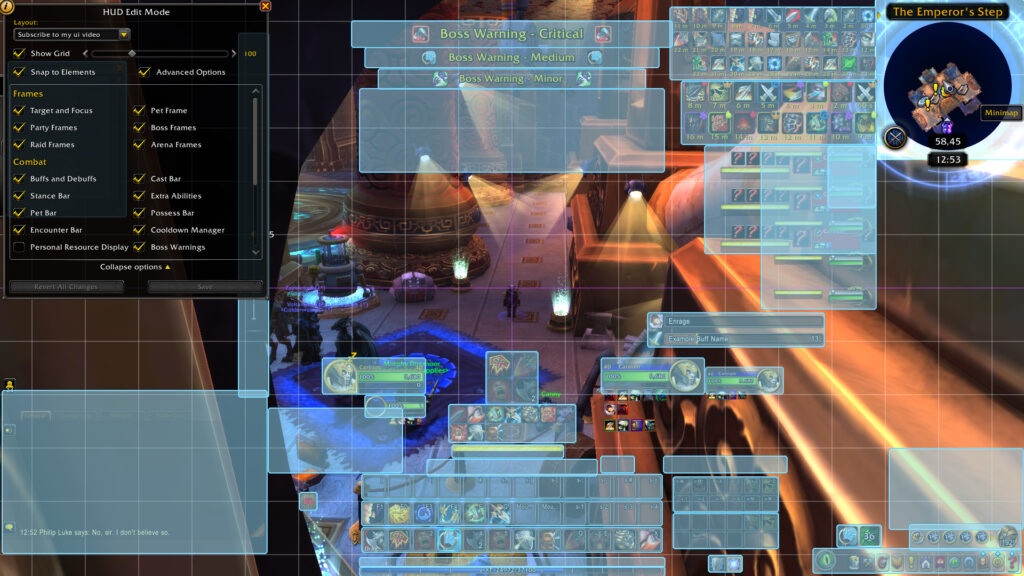
To start editing your UI, press Escape and open the game menu, then click Edit Mode. This is Blizzard’s built-in UI editor and it’s surprisingly powerful once you know how to use it.
You’ll be prompted to choose between:
- A Modern preset
- A Classic preset
Either works, but for a cleaner, more modern look, I recommend choosing Modern.
Create a new layout, give it a name, and decide whether you want this layout to be:
- Character-specific, or
- Shared across your entire account
For most players, a shared account-wide layout is the best option.
Cleaning Up the Default Action Bars
One of the first things I do is remove the decorative bar art. While it looks nostalgic, it wastes space and gets in the way.
- Open the action bar settings
- Enable Hide Bar Art
- Save your changes
Next, enable additional action bars. I personally find five action bars to be the sweet spot for most classes.
This gives you room for:
- Core abilities
- Cooldowns
- Utility spells
- Consumables like Hearthstones and potions
Once enabled, return to Edit Mode so you can reposition and resize everything cleanly.
Positioning Action Bars for Combat Clarity
Your main action bars should sit just below your character, not at the very bottom of the screen. This keeps your eyes closer to the center, which helps massively in combat when you need to avoid mechanics.
For side action bars that hold consumables or non-combat items:
- Change them from vertical to horizontal
- Reduce them to two rows
- Scale them down to around 70% size
These bars don’t need to dominate your screen.
A great quality-of-life trick here is setting these side bars to only appear out of combat. This keeps your screen clean during fights and brings them back automatically when you’re safe.
Player Frames, Target Frames, and Cast Bars
Your player and target frames should be closer to the center of the screen, but not so low that buffs and debuffs become hard to read.
I always:
- Move player and target frames slightly inward
- Keep debuffs clearly visible
- Place the cast bar just above the action bars
This creates a tight, readable cluster that’s easy to monitor during combat.
Making Debuffs, Boss Warnings, and Timers Obvious
Debuffs are important. If you miss one, you die.
Increase the size of debuffs so they visually stand out and immediately grab your attention. This is especially important in raids and Mythic+ content.
Enable and position:
- Boss warnings
- Encounter timelines
- Extra action buttons
These elements don’t need to be front and center, but they should be easy to spot when they appear.
Using the Built-In Cooldown Manager (No Addons Needed)
One of the most underrated features in modern WoW is the Cooldown Manager.
Enable it by:
- Opening Options
- Searching for “Cooldown Manager”
- Turning it on
Once enabled, you can track:
- Major cooldowns
- Utility abilities
- Important buffs
This acts like a lightweight WeakAura system without installing anything. Resize it so cooldowns are clearly visible, and set it to only appear in combat if you want a cleaner look.
Default Damage Meter and Combat Tracking
WoW now includes a built-in damage meter that works surprisingly well.
You can:
- Enable it in the options
- Move it near your chat window
- Create additional windows for healing or interrupts
This is especially useful in Mythic+ where tracking interrupts alongside damage can make a big difference.
Chat Window, Map, and Durability Setup
Chat is personal preference, but I recommend making it large enough to comfortably read without dominating the screen.
The minimap can safely be scaled up slightly for better visibility, and durability alerts should be moved somewhere obvious so you never miss them mid-session.
Assisted Highlighting: An Underrated DPS Tool
One final setting that helps a lot, especially for newer or returning players, is Assisted Highlighting.
Enable it by searching “Highlight” in the options menu and turning on assisted highlights.
This subtly highlights abilities Blizzard recommends pressing next, based on your spec and situation. It’s not perfect, but it’s incredibly helpful while learning a class or returning after a break.
Optional Addon: SexyMap
If you want to push your UI a little further visually, I recommend SexyMap.
It lets you:
- Customize your minimap style
- Remove unnecessary rotating elements
- Scale and reposition cleanly
It’s simple, lightweight, and pairs nicely with a clean default UI.
Import My UI Layout
If you want to skip the setup entirely, you can import my exact UI layout using the string below.
Import String for WoW Ui
2 50 0 0 1 7 7 UIParent 0.0 45.0 -1 ##$$%/&('%)$+#,$ 0 1 1 7 7 UIParent 0.0 45.0 -1 ##$$%/&('%(#,$ 0 2 1 7 7 UIParent 0.0 45.0 -1 ##$$%/&('%(#,$ 0 3 0 0 6 MultiBarLeft 0.0 -4.0 -1 ##$%%/&%'%(%,$ 0 4 0 7 7 UIParent 401.0 120.8 -1 ##$%%/&%'%(%,$ 0 5 1 1 4 UIParent 0.0 0.0 -1 ##$$%/&('%(#,$ 0 6 1 1 4 UIParent 0.0 -50.0 -1 ##$$%/&('%(#,$ 0 7 1 1 4 UIParent 0.0 -100.0 -1 ##$$%/&('%(#,$ 0 10 0 1 1 UIParent 400.0 -1042.0 -1 ##$$&('% 0 11 0 4 4 UIParent 0.0 -337.0 -1 ##$$&('%,# 0 12 0 0 0 UIParent 1127.0 -855.5 -1 ##$$&('% 1 -1 0 0 0 UIParent 848.0 -835.0 -1 ##$#%# 2 -1 1 2 2 UIParent 0.0 0.0 -1 ##$#%* 3 0 0 7 7 UIParent -259.0 324.0 -1 $#3# 3 1 0 7 7 UIParent 264.0 324.0 -1 %#3# 3 2 0 6 8 TargetFrame -31.5 4.0 -1 %## 3 3 1 0 2 CompactRaidFrameManager 0.0 -7.0 -1 '#(#)#-5.)/#1$3#5#6(7-7$ 3 4 1 0 2 CompactRaidFrameManager 0.0 -5.0 -1 ,#-5.)/#0#1#2(5#6(7-7$ 3 5 0 2 2 UIParent -278.0 -274.0 -1 &#*$3# 3 6 0 2 2 UIParent -278.0 -274.0 -1 -5.)/#4$5#6(7-7$ 3 7 0 2 8 PlayerFrame -16.0 17.0 -1 3# 4 -1 0 4 4 UIParent 400.0 -331.0 -1 # 5 -1 0 7 1 MultiBarBottomRight -331.0 4.0 -1 # 6 0 0 8 2 DebuffFrame 15.0 4.0 -1 ##$#%#&.(()( 6 1 0 4 4 UIParent 500.0 328.5 -1 ##$#%#'+(+)(-$ 6 2 1 1 1 UIParent 0.0 -25.0 -1 ##$#%$&.(()(+#,-,$ 7 -1 0 4 4 UIParent 0.0 295.5 -1 # 8 -1 0 0 0 UIParent 37.0 -793.0 -1 #'$I%%&/ 9 -1 0 4 4 UIParent -382.0 -400.0 -1 # 10 -1 1 0 0 UIParent 16.0 -116.0 -1 # 11 -1 0 1 1 UIParent 833.0 -842.0 -1 # 12 -1 1 2 2 UIParent -110.0 -275.0 -1 #K$#%# 13 -1 1 8 8 MicroButtonAndBagsBar 0.0 0.0 -1 ##$#%)&- 14 -1 1 2 2 MicroButtonAndBagsBar 0.0 10.0 -1 ##$#%( 15 0 1 7 7 StatusTrackingBarManager 0.0 0.0 -1 # 15 1 1 7 7 StatusTrackingBarManager 0.0 17.0 -1 # 16 -1 0 2 8 DebuffFrame -1.0 -5.0 -1 #2 17 -1 1 1 1 UIParent 0.0 -100.0 -1 ## 18 -1 1 5 5 UIParent 0.0 0.0 -1 #- 19 -1 1 7 7 UIParent 0.0 0.0 -1 ## 20 0 0 4 4 UIParent 0.0 -168.1 -1 #$$%%$&('$(-($)$+$,$-$ 20 1 0 7 7 UIParent 0.6 251.0 -1 ##$*%$&*'%(-($)$+$,$-$ 20 2 0 7 1 MicroMenuContainer -108.5 4.0 -1 ##$$%$&('((-($)#+$,$-$ 20 3 1 7 7 UIParent 420.0 430.0 -1 #$$$%#&('((-($)#*#+$,$-$.-.$ 21 -1 1 7 7 UIParent -410.0 380.0 -1 ##$# 22 0 1 8 7 UIParent -457.0 336.0 -1 #$$$%#&('((#)U*$+$,$ 22 1 1 1 1 UIParent 0.0 -40.0 -1 &('()U*#+$ 22 2 1 1 1 UIParent 0.0 -90.0 -1 &('()U*#+$ 22 3 1 1 1 UIParent 0.0 -130.0 -1 &('()U*#+$ 23 -1 0 6 0 ChatFrame1 -32.0 64.0 -1 ##$#%$&#'9(%)U+$,$-$.(/UThis layout is designed to work across multiple characters and specs, and you can tweak or disable any elements you don’t personally like.
Final Thoughts
A good UI won’t magically make you a god-tier player, but it will reduce visual noise, improve awareness, and make the game feel far better to play.
If this guide helped you get your UI sorted, make sure to check out GamingHero.io, where I help players play World of Warcraft at a higher level through guides, tools, and systems that actually work.
Thanks for reading.
Erosium – Gaming Hero


Leave a Reply
You must be logged in to post a comment.