These are the settings I use in Midnight to get the most FPS without the game looking bad. Change about ten things and you can expect a big jump, especially in Silvermoon, raids and Mythic+.
Playing WoW Forever? Use our WoW Forever settings guide instead, it has different graphics options.
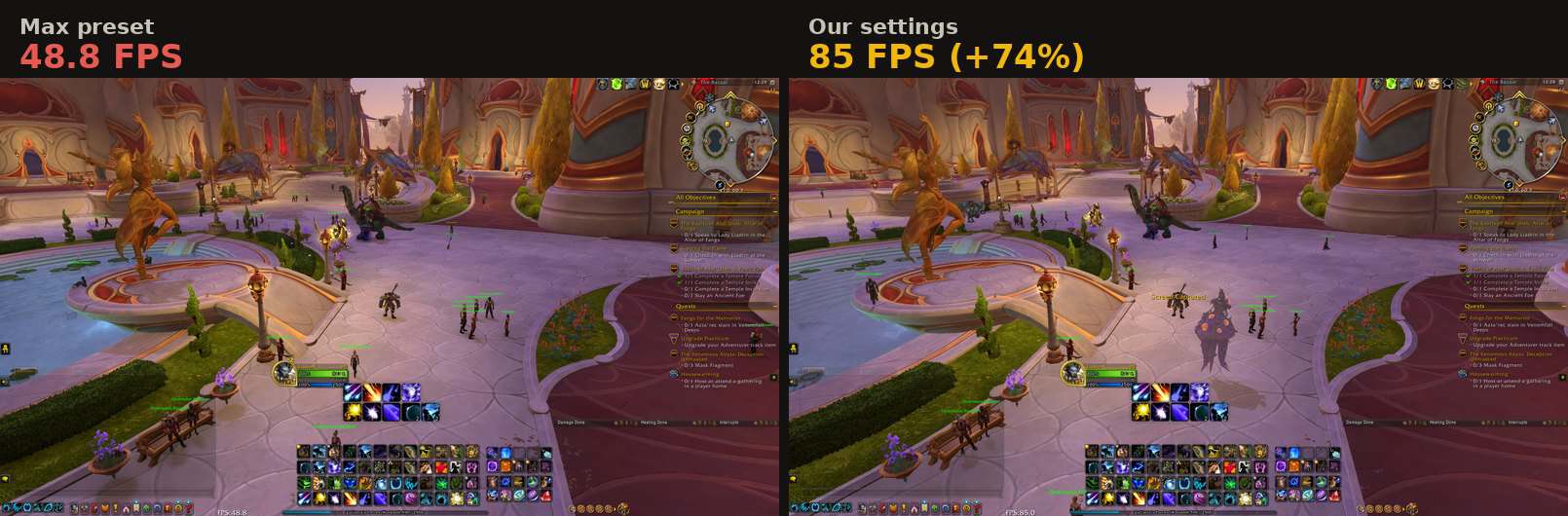
The 5 changes that matter most
- Vertical Sync off, and cap FPS with Max Foreground FPS instead.
- Shadow Quality: Fair (Low in raids).
- Spell Density: Essential.
- View Distance 6, Environment Detail 5, Ground Clutter 3.
- Target FPS off and DirectX 12 on.
1. Display settings
Press Esc → Options → Graphics. The top of the menu should look like this:
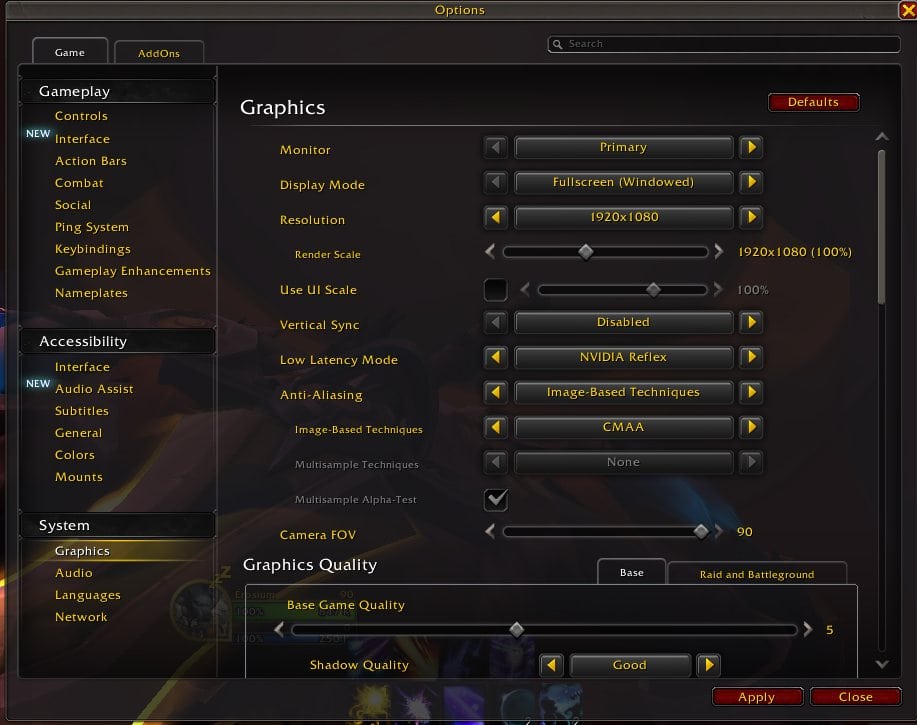
- Display Mode: Fullscreen (Windowed)
- Render Scale: 100% (drop to 90% only if your graphics card struggles)
- Vertical Sync: Disabled. It adds input lag.
- Low Latency Mode: NVIDIA Reflex (or Built-in on other cards)
- Anti-Aliasing: Image-Based Techniques → CMAA
2. Graphics quality
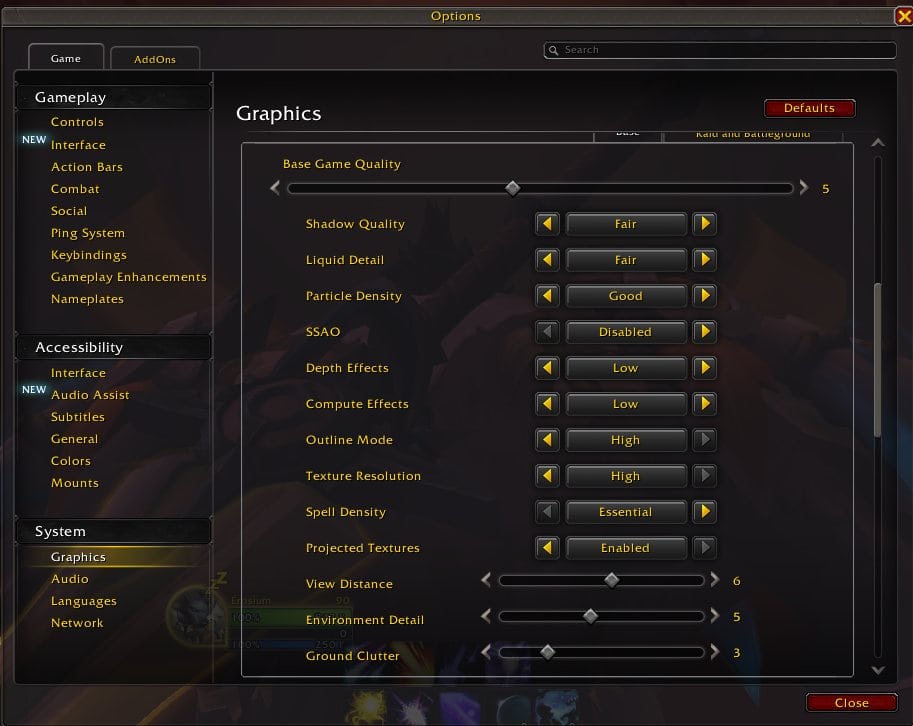
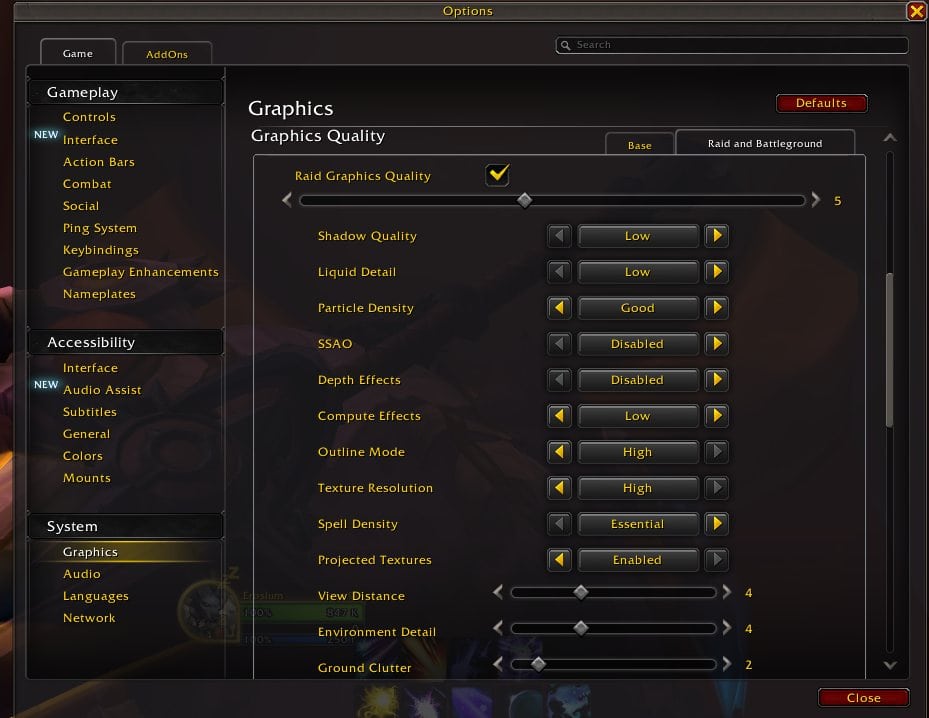
Scroll down to Graphics Quality and set each option by hand. Use the left column for everyday play and the right column for the Raid and Battleground tab.
| Setting | Everyday (Base) | Raids & BGs |
|---|---|---|
| Shadow Quality | Fair | Low |
| Liquid Detail | Fair | Low |
| Particle Density | Good | Good |
| SSAO | Disabled | Disabled |
| Depth Effects | Low | Disabled |
| Compute Effects | Low | Low or Disabled |
| Outline Mode | High | High |
| Texture Resolution | High | High |
| Spell Density | Essential | Essential |
| Projected Textures | Enabled | Enabled |
| View Distance | 6 | 4 |
| Environment Detail | 5 | 4 |
| Ground Clutter | 3 | 2 |
Never turn off Projected Textures or drop Particle Density below Good. That is how boss abilities and ground effects are drawn.
3. Raid and Battleground tab
WoW can switch to lighter settings automatically in raids and battlegrounds. Click the Raid and Battleground tab and tick the box next to Raid Graphics Quality, otherwise everything stays greyed out. Then use the right column of the table above.
4. Advanced settings
Keep scrolling to the Advanced section.
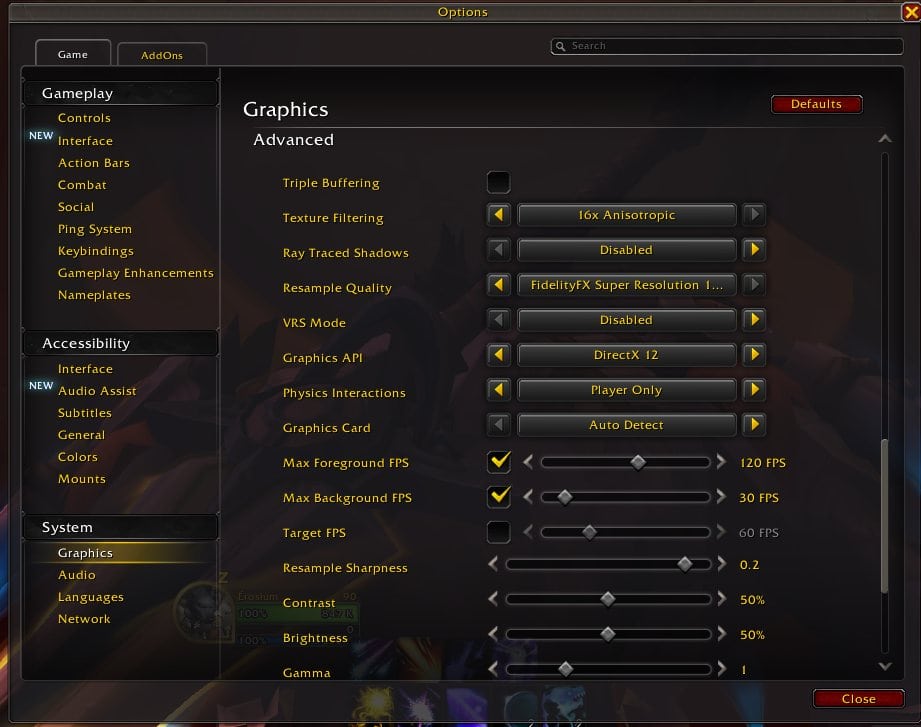
- Triple Buffering: off
- Texture Filtering: 16x Anisotropic
- Ray Traced Shadows: Disabled
- Graphics API: DirectX 12
- Max Foreground FPS: on, set to your monitor’s refresh rate (60, 120, 144…)
- Max Background FPS: on, 30
- Target FPS: off. It changes your graphics on the fly and causes stutter.

5. Quick quality-of-life settings
| Where | Setting | Why |
|---|---|---|
| Controls | Auto Loot: on | Loot everything in one click |
| Controls | Interact Key: on | Talk to NPCs and loot with one key |
| Interface | Combine Bags: on | One bag window instead of five |
| Interface | Tutorials: off | No pop-ups |
| Combat | Show Outline When Obscured: on | See your character behind spell effects |
| Gameplay Enhancements | Assisted Highlight: on | Glows the best ability to press next |
| Gameplay Enhancements | Cooldown Manager: on | Built-in cooldown tracker, no addon needed |
| Gameplay Enhancements | Damage Meter: Auto Reset | Resets after every fight |
| Nameplates | Friendly nameplates: off (Shift+V) | Less clutter and more FPS in cities |
Still low FPS or stuttering?
- Press Ctrl+R to show FPS, then try Render Scale 80%. If FPS barely moves, your processor is the limit: lower View Distance and Shadows instead.
- Delete the Cache folder: close WoW, open your World of Warcraft folder, go into
_retail_and deleteCache. Never delete WTF. - Freezing or the world re-loading? Switch Graphics API to DirectX 11 (Legacy).
- Turn off overlays (Xbox Game Bar, Discord) and set Windows to a High Performance power plan.
Handy commands (type in chat once, they save): /console RAIDweatherDensity 0 removes raid weather, /console ResampleAlwaysSharpen 1 sharpens the picture at 90% Render Scale, /console cameraDistanceMaxZoomFactor 2.6 zooms the camera out further.
Watch the video
Frequently asked questions
What are the best WoW settings for FPS?
Vertical Sync off with an FPS cap, Shadow Quality Fair, Spell Density Essential, View Distance 6, Environment Detail 5, Ground Clutter 3, Target FPS off and DirectX 12. In our test that took Silvermoon from 48.8 to 85 FPS.
Why does my FPS drop in raids?
Big fights load your processor more than your graphics card. Use the Raid and Battleground tab with Shadows on Low and View Distance 4.
Should I use DirectX 12 or 11?
DirectX 12 on almost every modern PC. Only switch to DirectX 11 (Legacy) if you get freezes or crashes.
Join 20,000+ gold makers
Get a new members-only gold strategy every week, our full library of member guides and the members area of our Discord, where 800+ gold makers share what is working right now.
 MEMBERS
 MEMBERS
 FREE
 FREE



Leave a Reply
You must be logged in to post a comment.